Learning Objectives
After completing this lesson, you'll be able to:
- Create a Webhook URL to run a workspace on FME Flow.
- Run a Workspace App that provides a link to run the same workspace using a different service.
Resources
- Starting FME Flow project | C:\FMEData\Workspaces\CreateDataIntegrationApps\create-data-integration-apps--starting-project.fsproject
- Starting workspace | C:\FMEData\Workspaces\CreateDataIntegrationApps\FoodVendorBusinesses.fmw
If you're taking a live Safe Software-hosted training course or using an on-demand lab for this course, we've already imported the content for this lesson into your FME Flow.
If you're completing this lesson with your own FME Flow, you must import the starting project with the content into your FME Flow.
Expand for Steps to Import the Starting Project
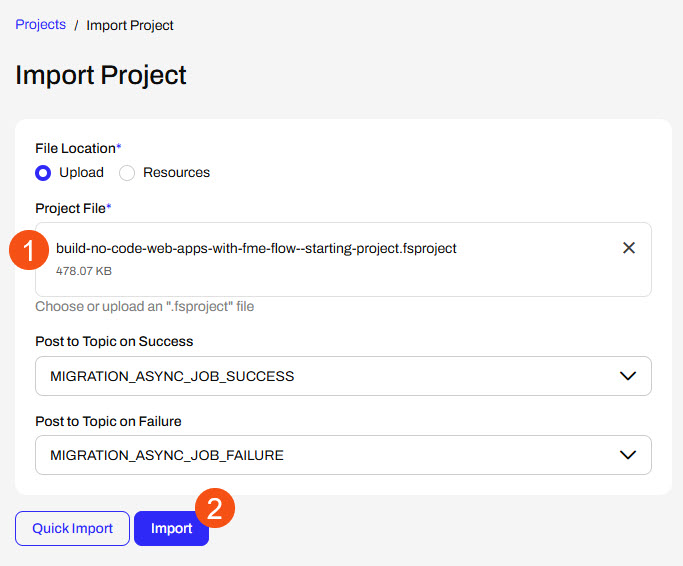
2) Upload the
create_data_integration_apps.jceks encryption key to your FME Flow. An fmesuperuser who has permission to System Configuration > Security > System Encryption must perform this action. For more information, see our documentation on
System Encryption.
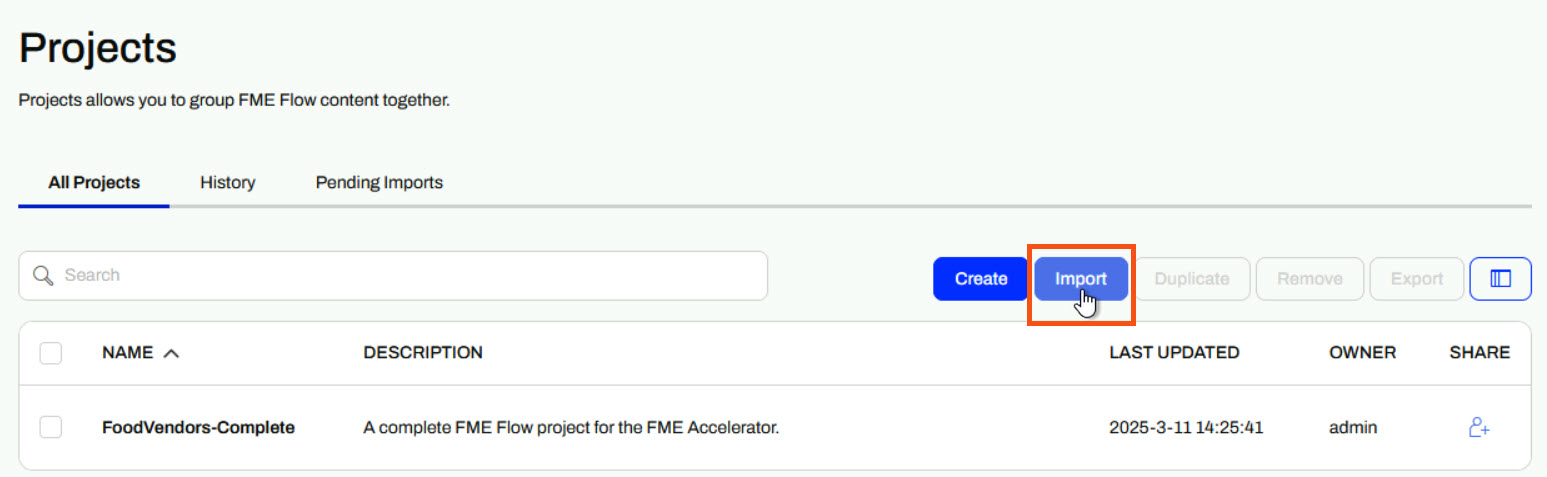
3) Navigate to your FME Flow and open Projects. Click Import.
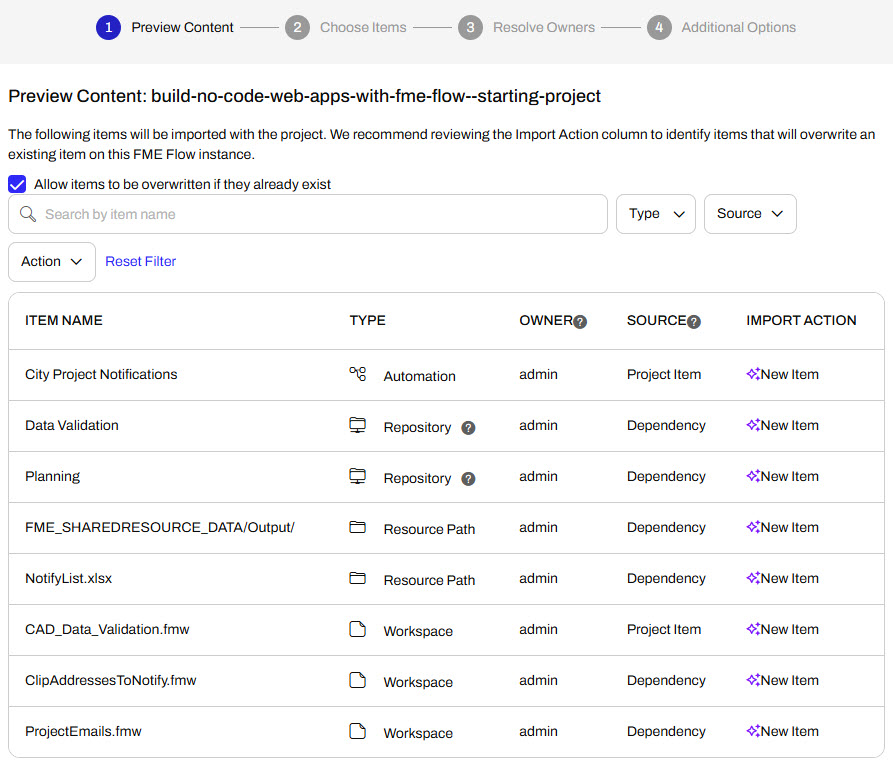
5) The first step is Preview Content, where you may choose not to overwrite existing items. If all your items are New Items, you don't need to worry about overwriting existing items. Click Continue.
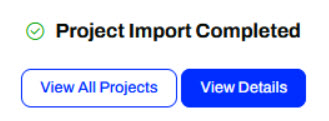
6) The next step is to select connections and tokens to import. This project doesn't contain any connections, parameters, tokens, or users to import. Click Continue through Step 2 and Step 3. Click Import Project on Step 4. The project will import and display its import status from the same page.
If the project import failed, check that you uploaded the encryption key and repeat the process. If the issue persists, please contact us at train@safe.com.
Advanced Workspace Processing with Flow Apps
Currently, FME Flow limits Workspace Apps to using only one workspace with one service at a time. In specific scenarios, you may want to run a Workspace App with multiple services, run multiple workspaces in sequence, or conditionally run other FME workflows depending on results from your app. FME Flow offers numerous features that enable you to link workspaces and apps together for seamless processing.
| Feature |
Common Functions |
|
Automation Apps
|
Run multiple workspaces in sequence or in parallel.
Run workspaces conditionally based on results or data from previous workspaces or app inputs.
Trigger additional workflows with FME Flow System Events and Topics external actions.
|
|
FME Flow REST API
|
Make API calls to FME Flow to get data and information from FME Flow.
Trigger and run FME workflows from external applications or from workspaces.
Link within Workspace App workspaces to run other workflows or send data to FME Flow.
|
Webhook URLs
|
Run workspaces programatically from third-party applications, web browsers, or other workspaces.
Link from Workspace App results to run a second workspace with app user inputs, or with a different service than the app.
|
In this lesson, we’ll cover two common examples linking multiple workspaces and apps together using FME Flow's REST API and Webhook URLs. We previously covered Automation Apps in the previous course, and you can learn more about Automation Apps in Job Orchestration in Automations.
Triggering Workflows with the FME Flow REST API
You can use the FME Flow REST API to run or enable additional workflows on FME Flow from within a workspace that is running as an app. First, locate the API endpoint you wish to use in the FME Flow REST API documentation, which you can find at http://<your FME Flow host>/fmeapiv4/docs/index.html. For example, to enable or disable a Schedule on your FME Flow from a Workspace App, you would use the PUT /schedules/{id}/enabled endpoint.
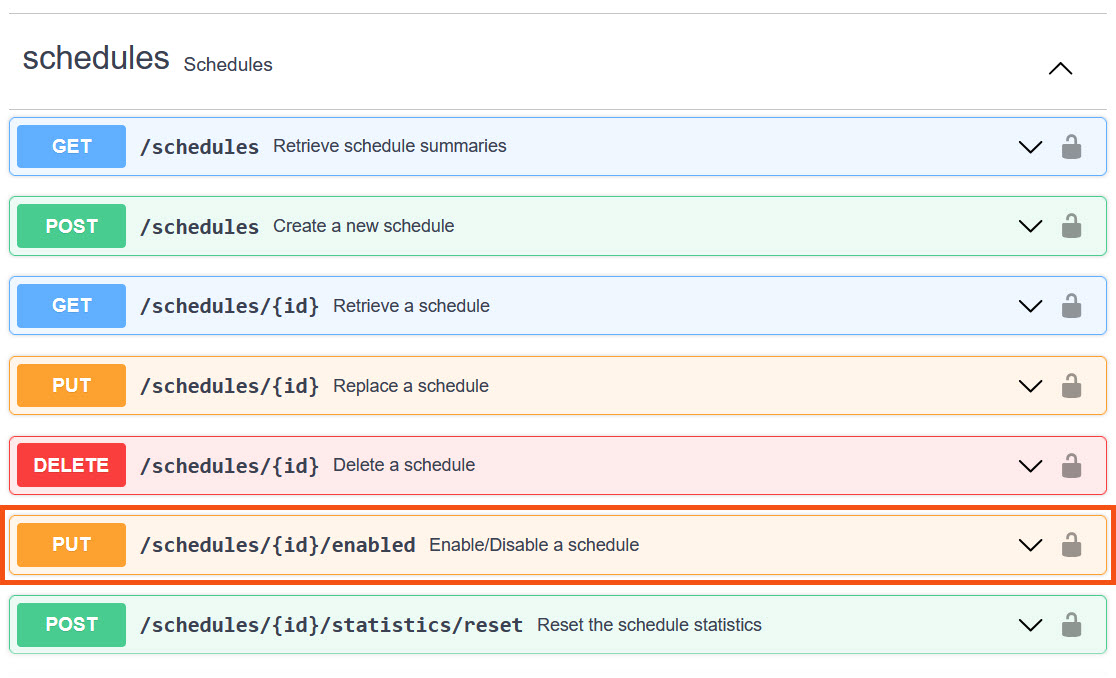
The endpoint takes a single parameter, the schedule ID, as input. You can configure your workspace to enable or disable a single schedule, or use a user parameter to select which Schedule to enable or disable in your FME Flow. You would create a Choice parameter to choose the name of the Schedule, and it would reference the ID.
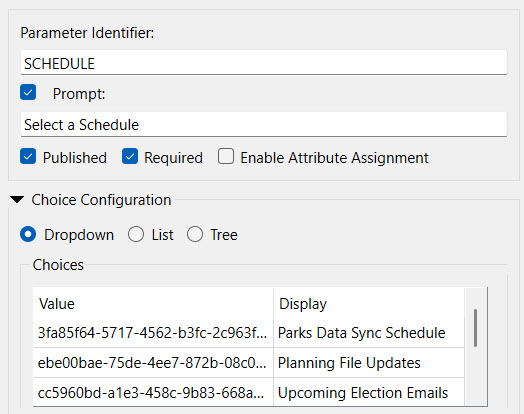
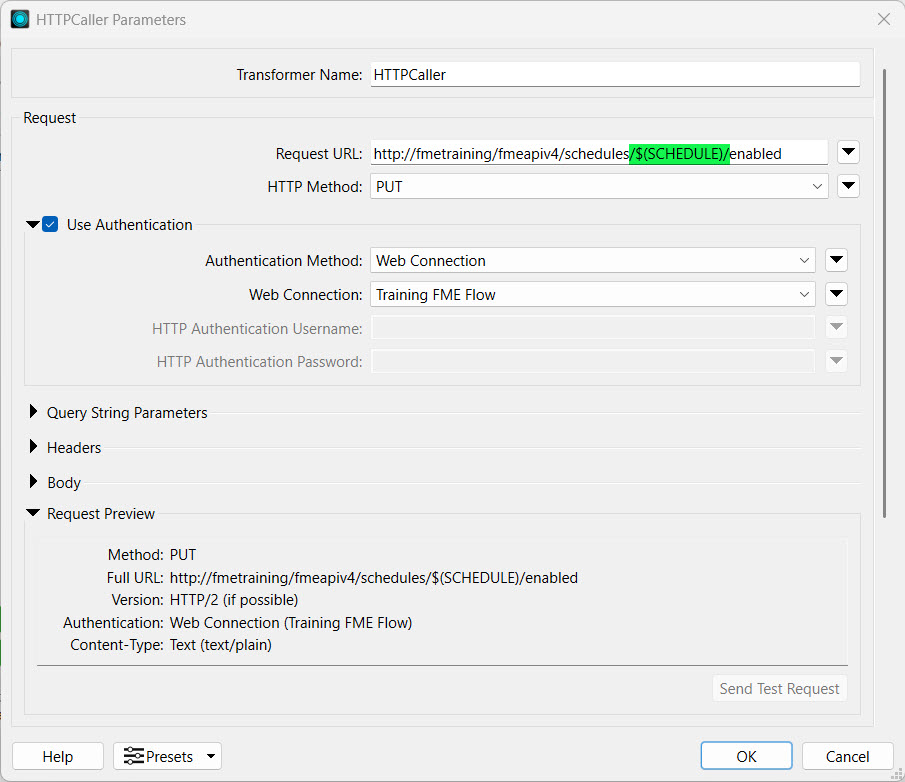
Then, reference the parameter from the transformer that makes the API request in your workspace. The most common transformers for this purpose are the HTTPCaller and OpenAPICaller.
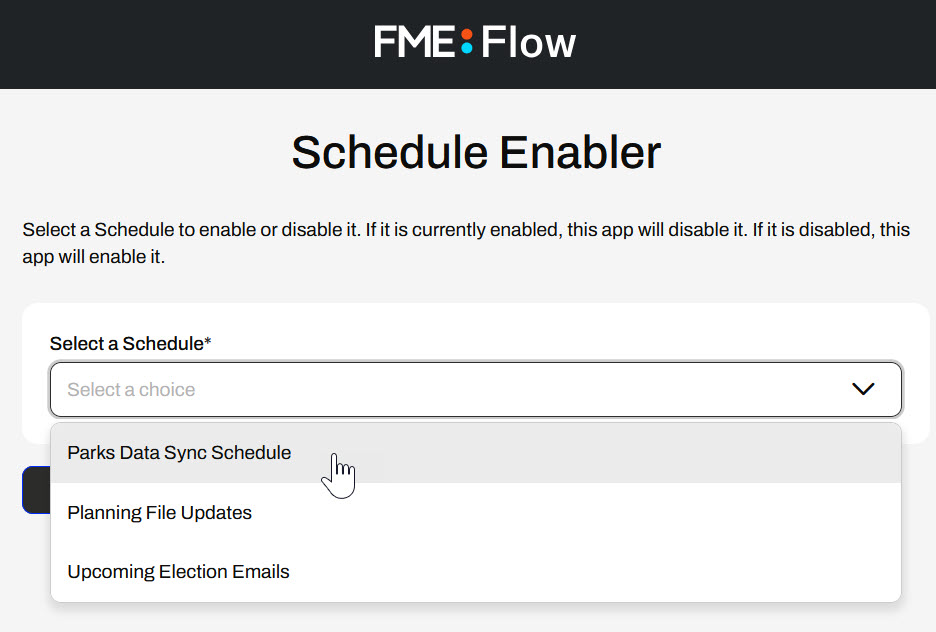
From a Workspace App, the user only sees the Schedule Names from the Choice parameter. When they run the app, the workspace makes an API call to FME Flow to enable or disable the Schedule they've selected.
Webhook URLs to Run Workspaces
Workspace Apps are limited to running a workspace once and only using one registered service, meaning you need two apps to run the same workspace with different services. You may want to run a workspace with multiple services if you wish to preview the data before writing it to its final location or downloading it. It's also slightly inconvenient to swap between and enter parameters for multiple apps.
Instead, you may link to a Webhook URL to run a workspace from a Workspace App description or from a Data Streaming result. Once you click the link, FME Flow will run the workspace using pre-set parameters. This workspace can be the same as the app's workspace, likely with a different service, or a different workspace altogether.
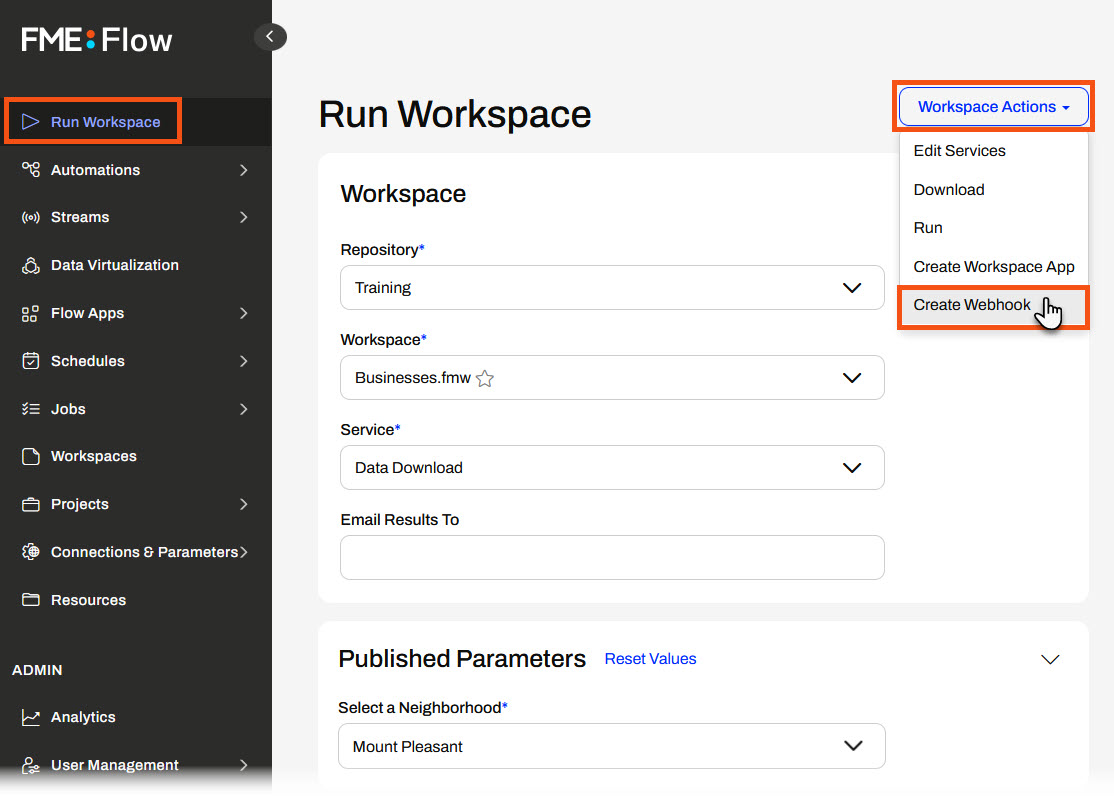
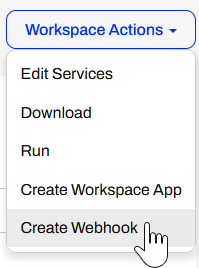
To create a Webhook URL, you configure your workspace to run from the Run Workspace page on FME Flow. Instead of clicking Run, scroll back up to the top, open Workspace Actions, and select Create a Webhook URL.
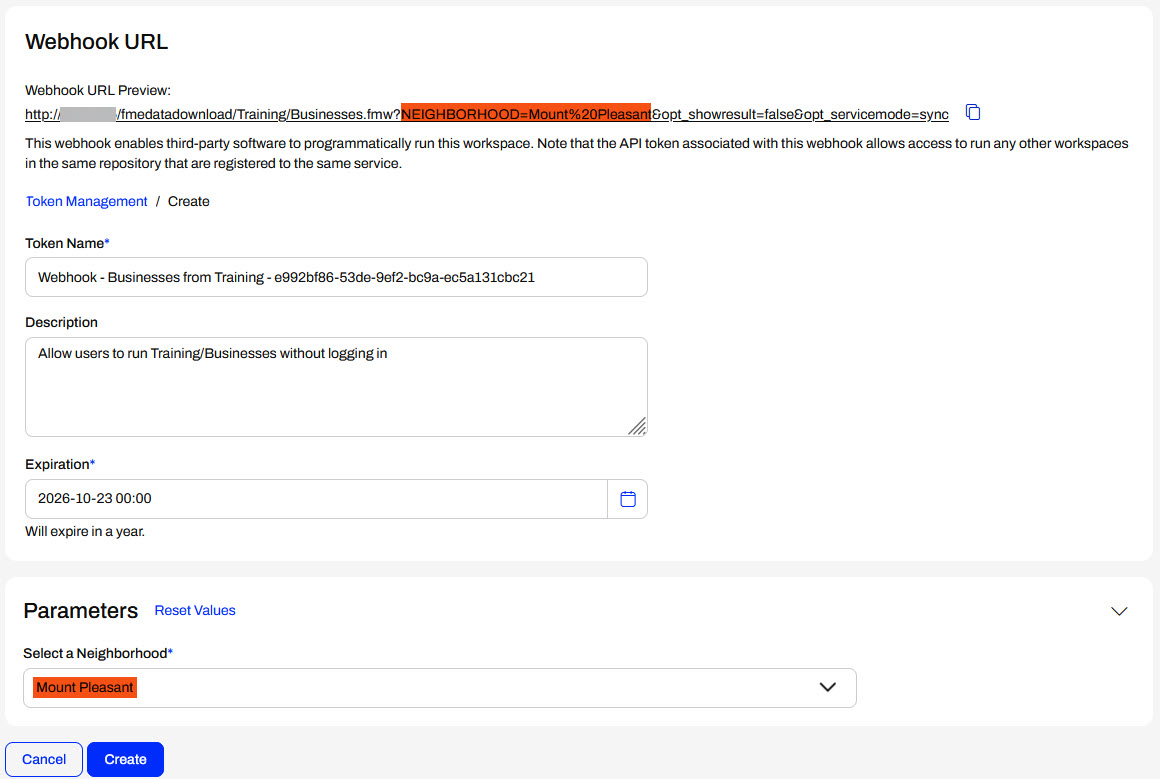
The Create Webhook page will open, where you create a token to grant permission to run the workspace through the webhook. There's also a Webhook URL preview that will update to match the Parameters you set.
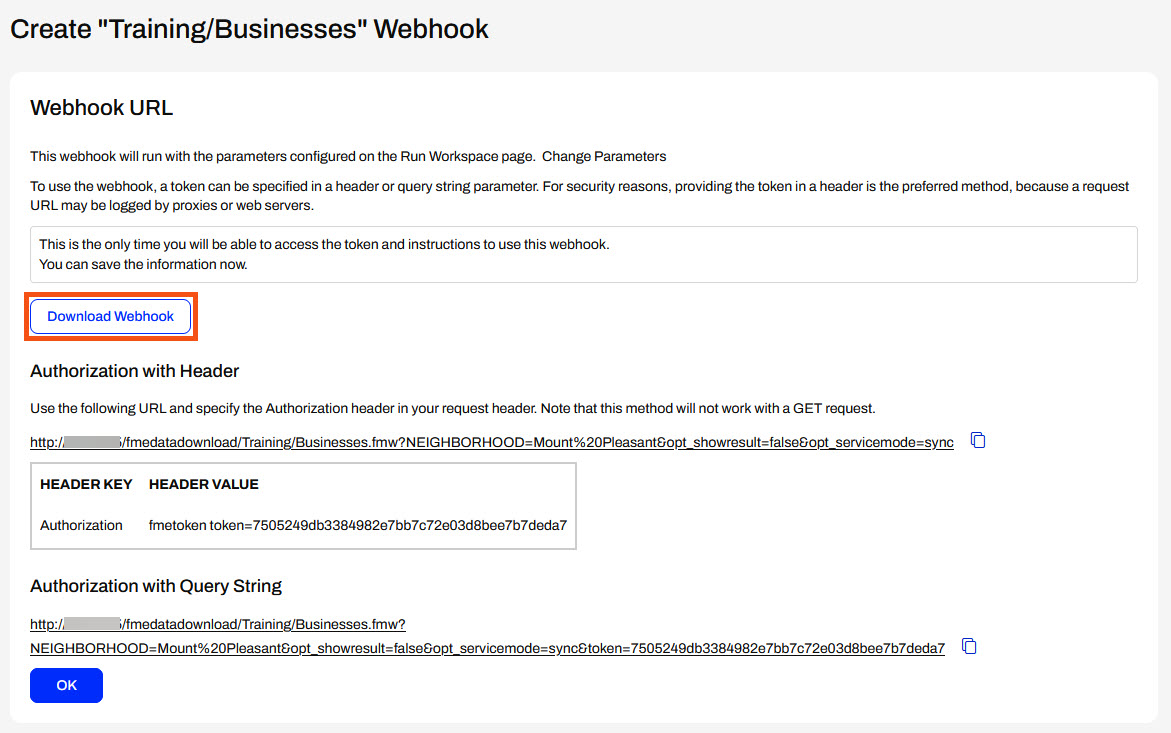
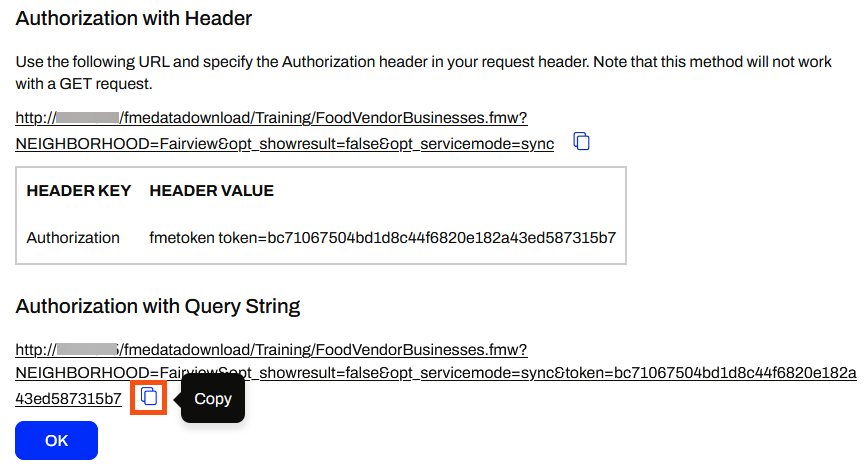
Once you set your parameters and click Create, FME Flow creates the webhook and presents you with the opportunity to download the webhook and its instructions. For security reasons, this is your only opportunity to download this information. FME Flow also creates two URLs that you can use to run the workspace: one that uses Authentication with a Header and one that uses Authorization with a Query String. You may copy the URLs and token here.
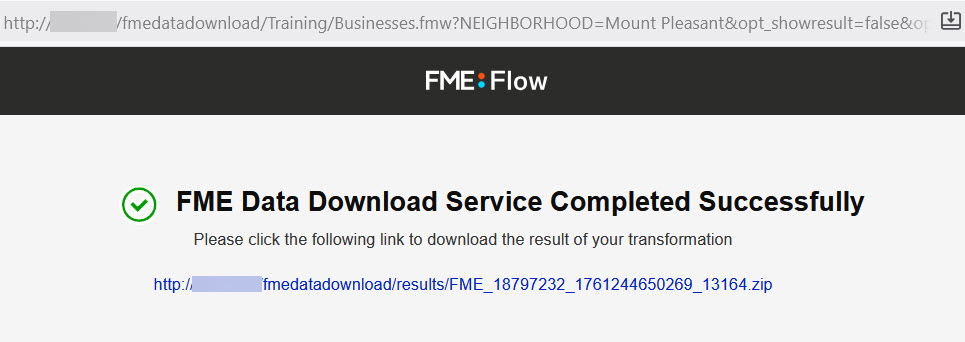
If you paste your URL into a new browser tab, the workspace will run, and FME Flow will return the result to you.
You can paste the URL in a Workspace App description or footer text for users to click and run your workspace through the webhook.
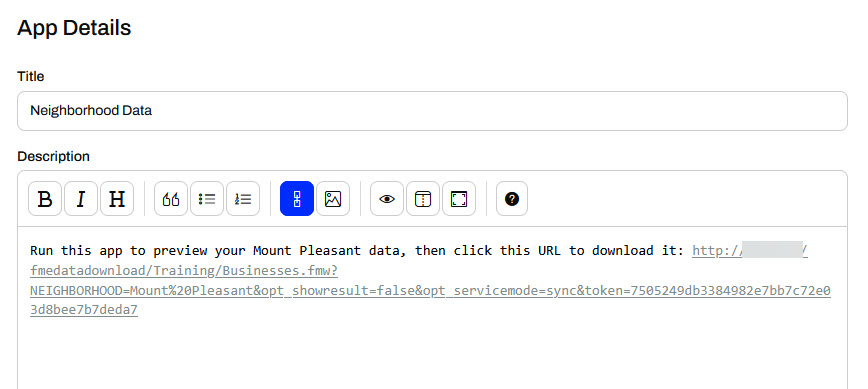
Alternatively, with greater flexibility, you can use the Webhook URL in a Data Streaming HTML report output by incorporating custom HTML into an HTMLReportGenerator. Using a webhook in a workspace output is even more flexible because you may take user input from the initial workspace using user parameters linked in the webhook.
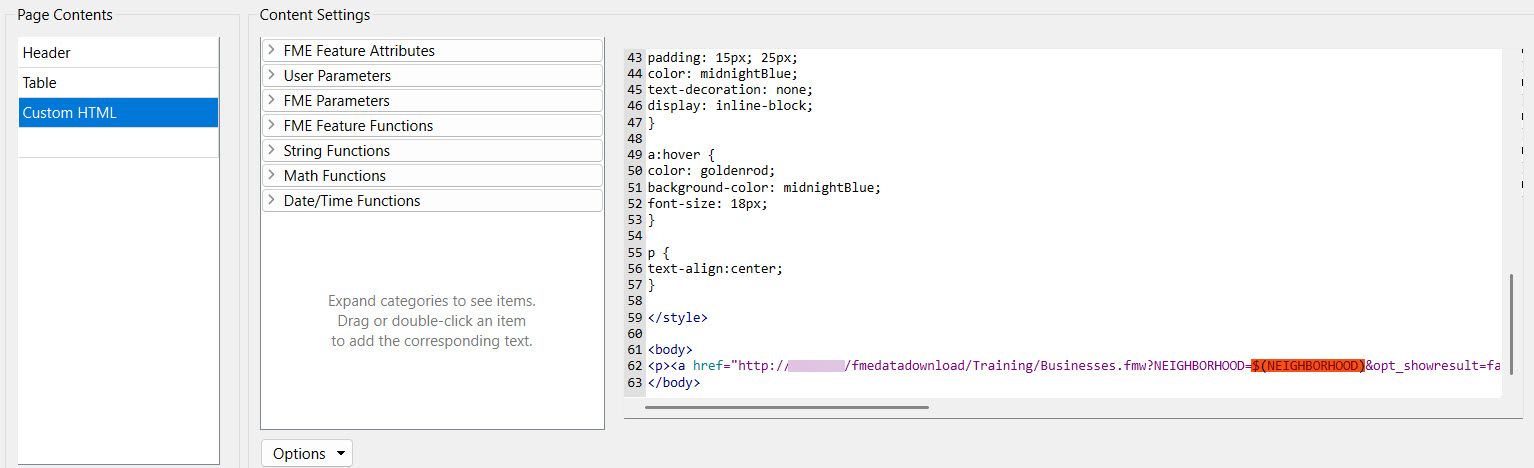
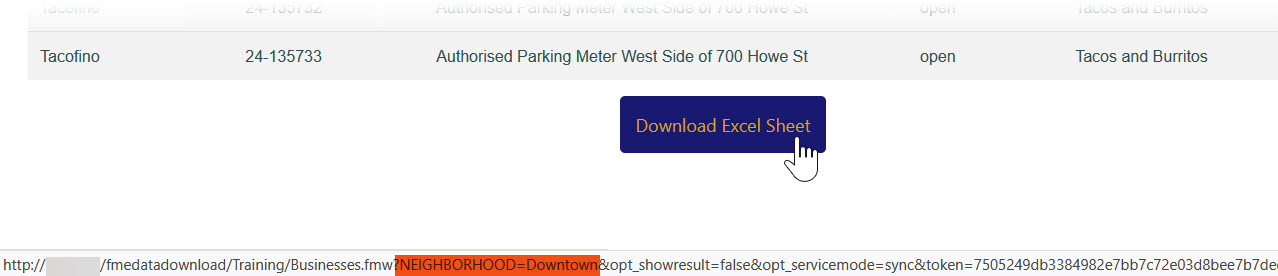
From an app, the URL will use the parameter value input from the app.

⭐ Coming soon in FME 2025.2: Query string parameters are coming to Flow Apps! You may complete this workflow and allow the user to pre-set parameters with a second Flow App instead of a Webhook URL.
Exercise

Frank is a GIS administrator working on a self-serve FME Flow App. His colleagues often ask him for business license data on food vendors. He frequently sends his colleagues data, and then they have follow-up requests for more data or different types of data. To make the data accessible to his colleagues and save himself time and effort in preparing the data, Frank is going to create a Workspace App that previews the data before downloading it. To accomplish this, Frank will create a Workspace App to run his workspace using the Data Streaming service. The workspace will stream an HTML report with a tabular preview of the data, and then provide a link to download the data. The link will be a Webhook URL that runs the same workspace as the app, but uses the Data Download service instead.
Follow along with Frank's steps as he creates a Webhook URL and a Workspace App for his workflow. He already has his workspace on FME Flow, and it runs successfully with the Data Download and Data Streaming services; however, he has yet to link the Data Streaming output to run the workspace with the Data Download service.
1) Create a Webhook URL
Frank navigates to and logs into his FME Flow. He opens the Run Workspace page and selects the Training repository. He then selects the FoodVendorBusinesses.fmw and sets it to the Data Download service. Under Published Parameters, Frank selects Downtown.
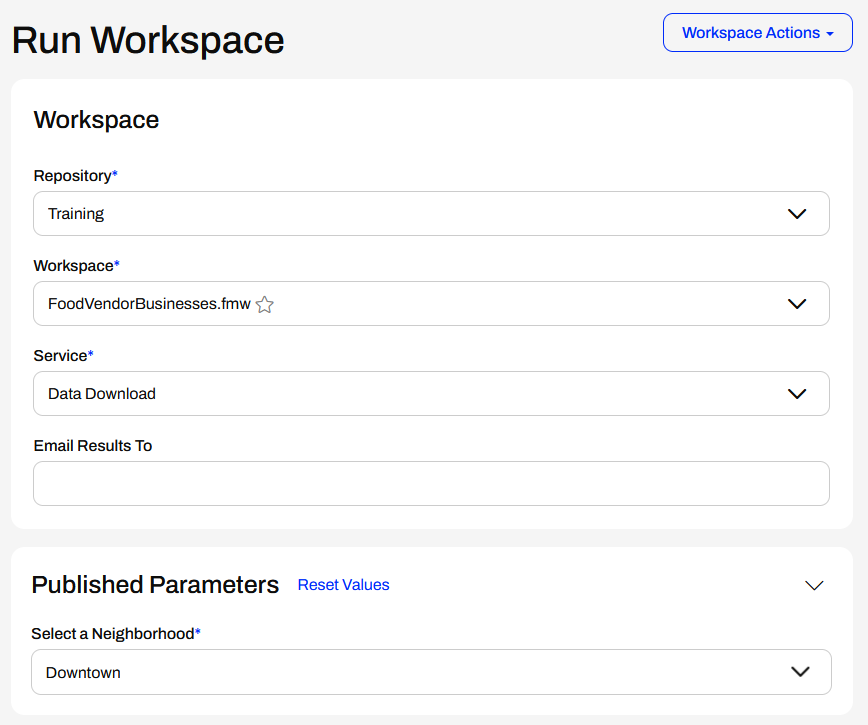
Instead of scrolling down to the bottom of the page to run the workspace, Frank opens the Workspace Actions menu at the top and selects Create Webhook.
The Create Webhook page opens. It creates a token to authenticate and run the workspace through the webhook and previews the URL.
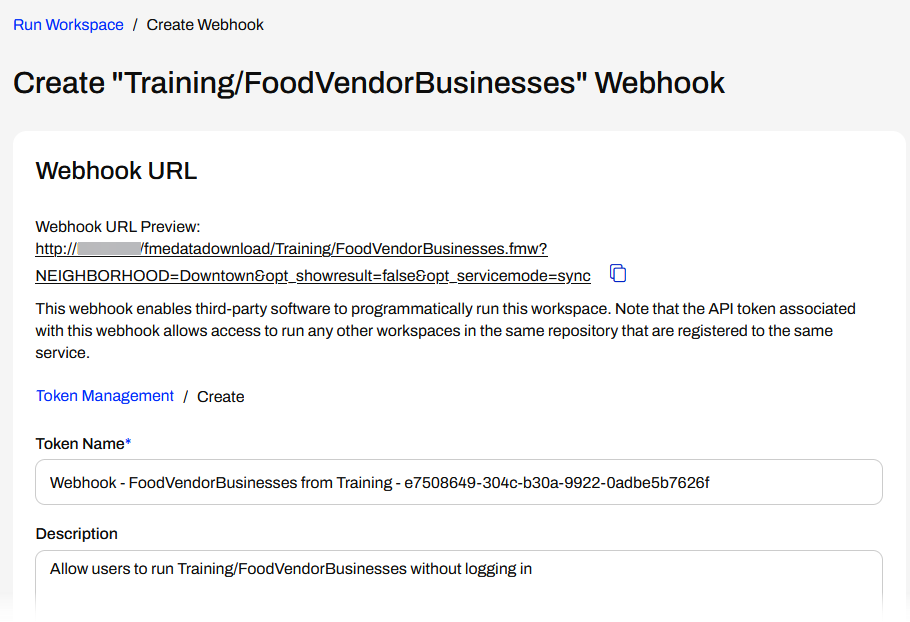
Frank scrolls down and expands Parameters. If he changes the neighborhood, the Webhook URL Preview immediately changes to reflect the parameter change.


Frank will use this functionality to pull the parameter value the user selects in the App into the Webhook URL.
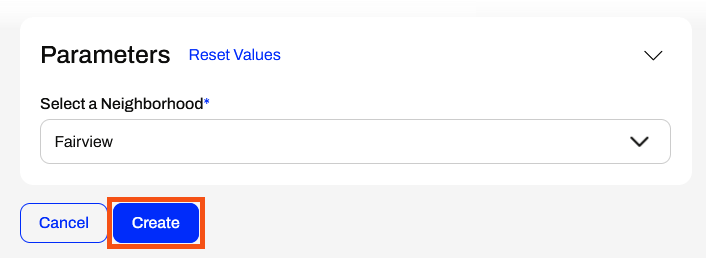
Frank scrolls down to the bottom of the page and selects Create.
On the next page, Frank scrolls down and copies the Authorization with Query String URL. In the next step, he will paste this into his workspace.
2) Add Webhook to Workspace
With his webhook copied, Frank opens his workspace (C:\FMEData\Workspaces\CreateDataIntegrationApps\FoodVendorBusinesses.fmw) in FME Workbench. The workspace reads Food Vendors and Business Licenses, joins them on the Business Name attribute, filters the vendors by a neighborhood set with a user parameter, then writes a CSV and an HTML report with the data.
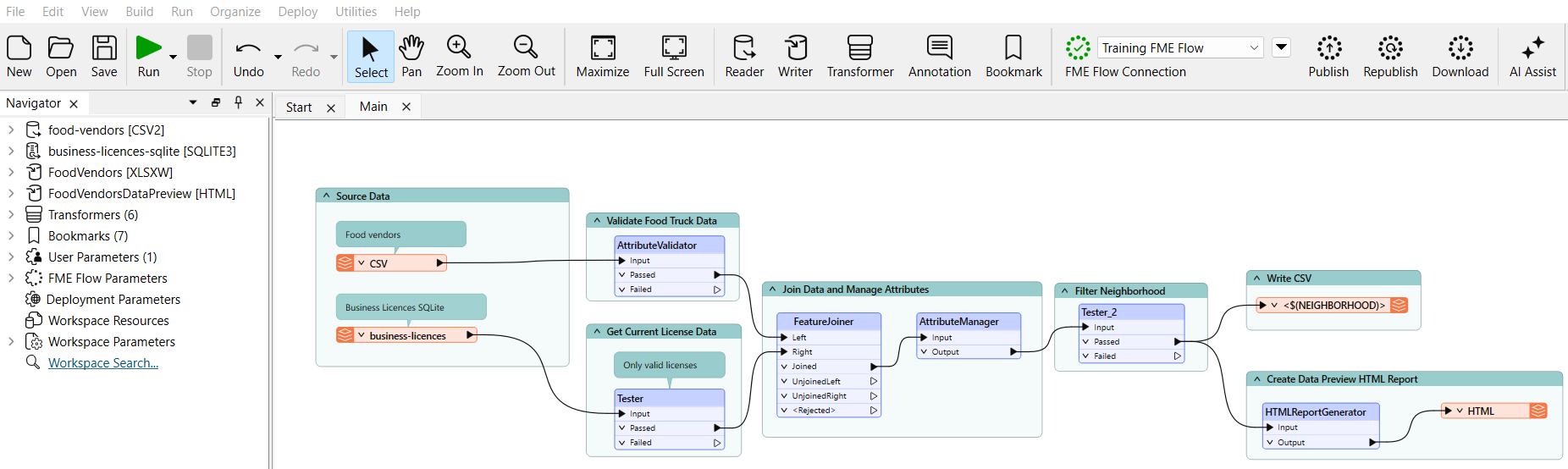
Frank will link his workspace webhook in the HTML report, so he opens the HTMLReportGenerator settings by double-clicking the transformer. Under Page Contents, Frank selects Custom HTML and then scrolls to the bottom of the HTML code to the body section.
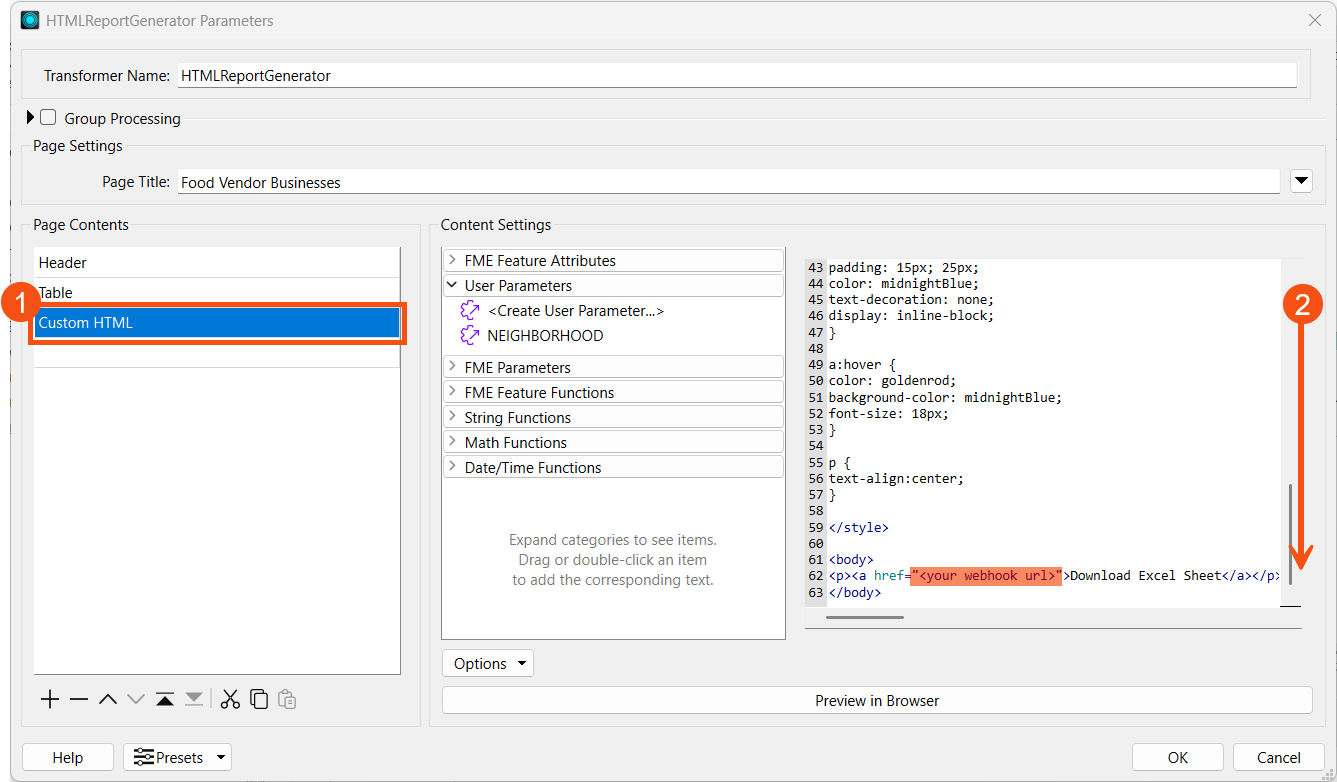
Frank selects <your webhook URL> and replaces it by pasting his webhook URL, which he copied from FME Flow.
Once he pastes the URL, he scrolls to the right in the text to find the NEIGHBORHOOD parameter. He selects the default parameter value and replaces it with the NEIGHBORHOOD user parameter by double-clicking it in the left pane in Content Settings.
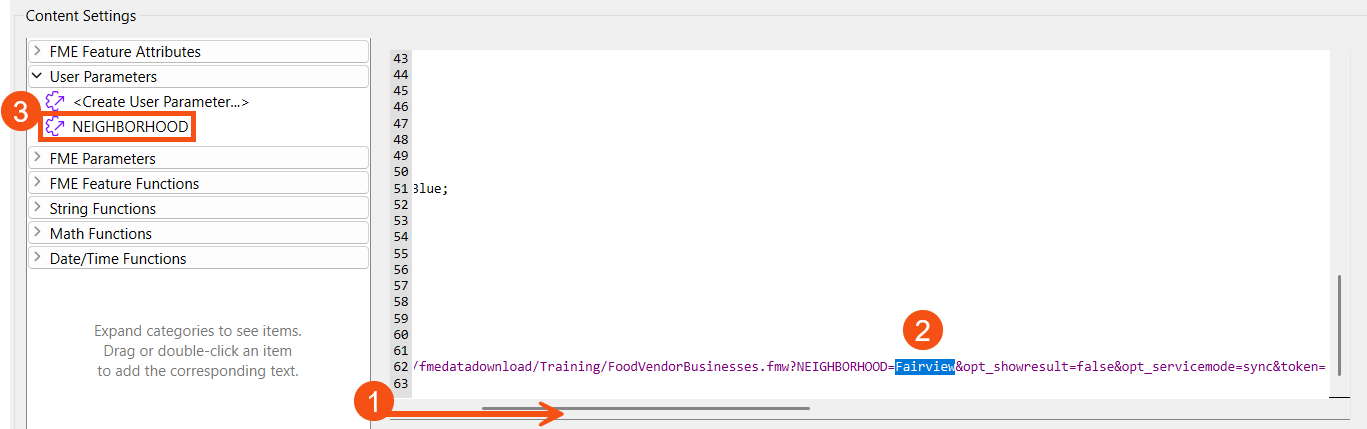
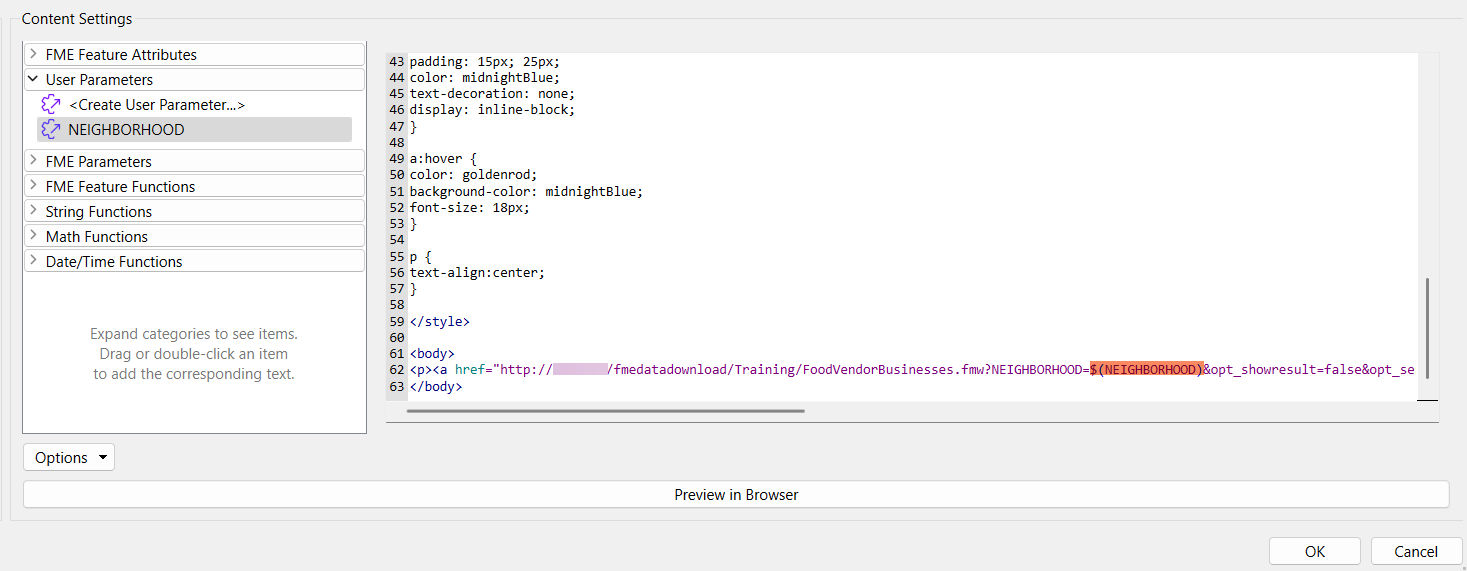
Frank only modifies line 62, and when complete, it should be like the following:
<p><a href="http://fmetraining/fmedatadownload/Training/FoodVendorBusinesses.fmw?NEIGHBORHOOD=$(NEIGHBORHOOD)&opt_showresult=false&opt_servicemode=sync&token=bc71067504bd1d8c44f6820e182a43ed587315b7">Download Excel Sheet</a></p>
Frank clicks OK to close the HTMLReportGenerator and saves his workspace.
3) Publish to FME Flow
Frank publishes his workspace to FME Flow. He replaces his existing workspace, FoodVendorBusinesses.fmw, in the Training repository by overwriting it.
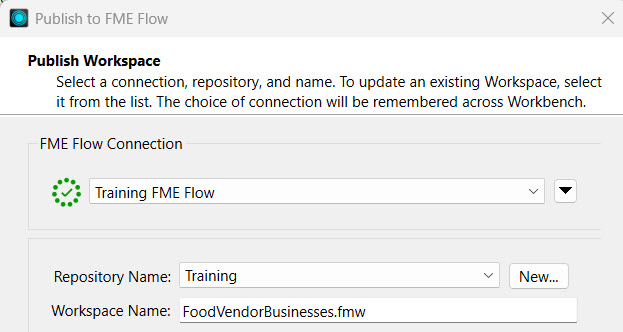
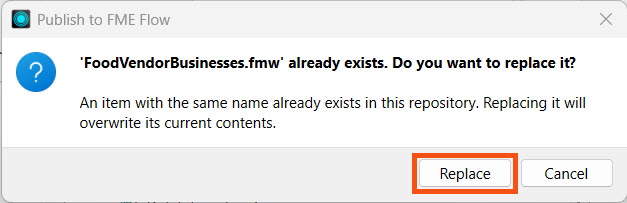
Frank clicks Next and receives a warning about overwriting the workspace. He confirms his action and clicks Replace.
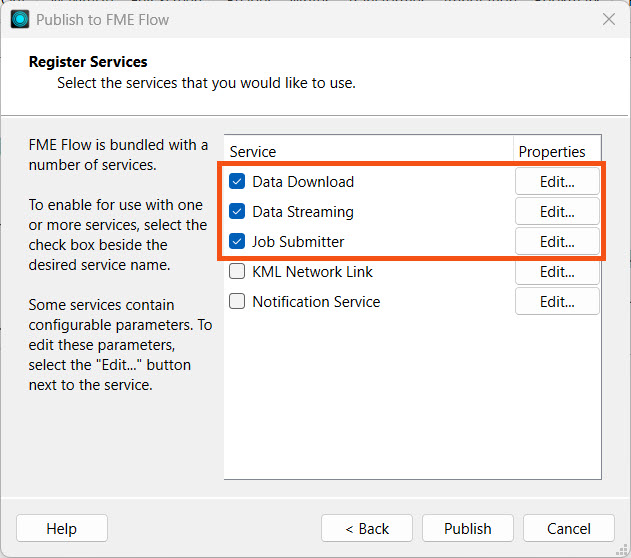
Next, Frank ensures Data Download, Job Submitter, and Data Streaming are all selected for the Register Services step and clicks Publish.
4) Create Workspace App
Frank returns to FME Flow and opens Create Workspace App. He gives his app a name, title, and description. Frank then selects the FoodVendorBusinesses.fmw workspace from the Training repository and selects the Data Streaming service.
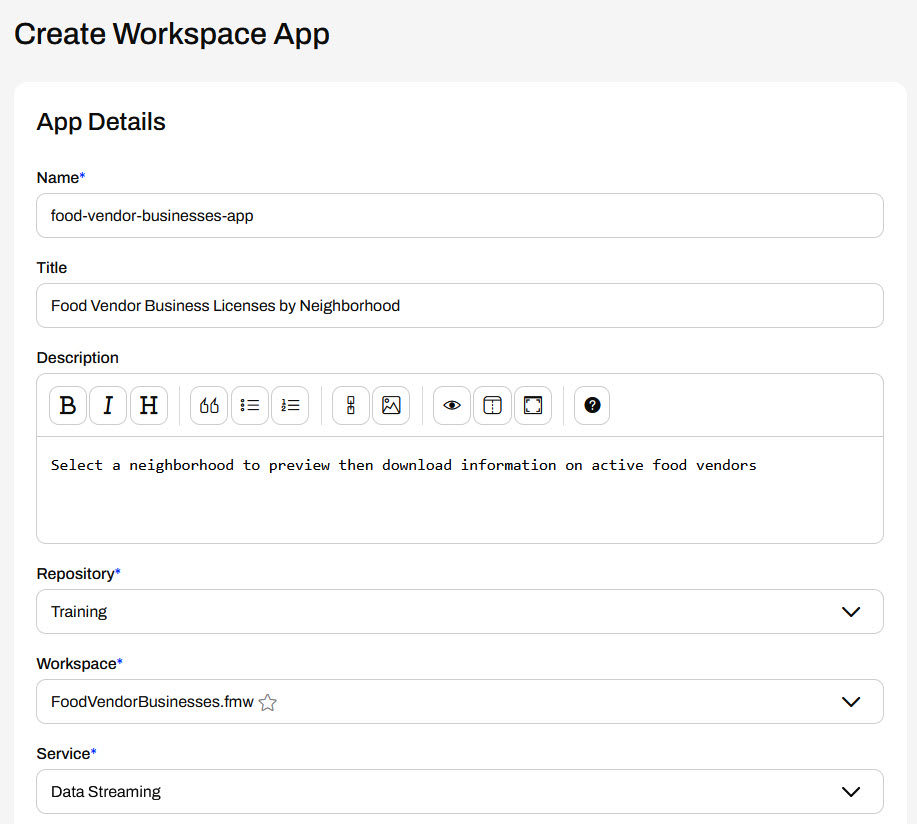
Frank doesn't alter any settings in Parameter Defaults or Customize. He clicks Create, then opens his app from the URL that FME Flow generates.
5) Run Workspace App
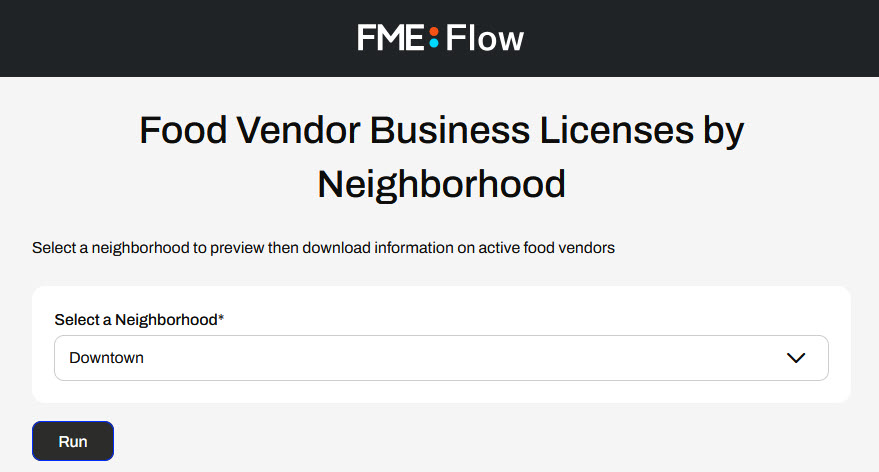
On his app, Frank selects a neighborhood from the drop-down and clicks Run.
FME Flow processes the workspace and presents a table of data in the HTML report. Below the table, Frank clicks the Download Excel Sheet button.
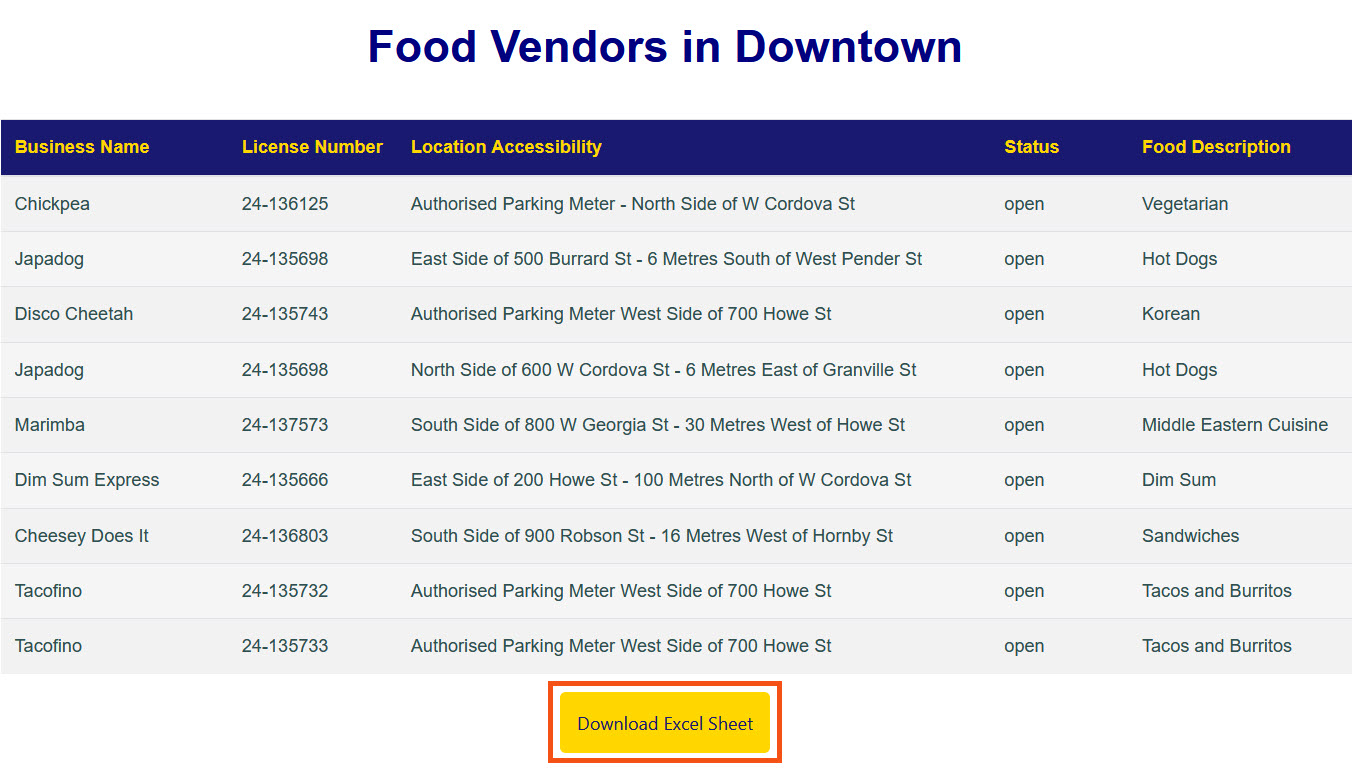
If Frank or another app user decides this is not the data they want, they can use the browser back button to return to the app, set different parameter values, then run it again.
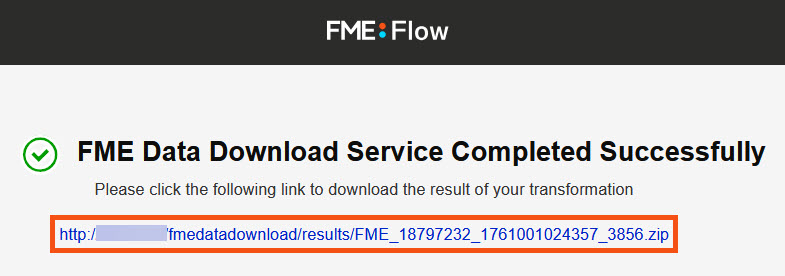
FME Flow reruns the workspace through the Webhook URL. This time, the workspace uses the Data Download service and presents Frank with a URL he clicks to download the data.
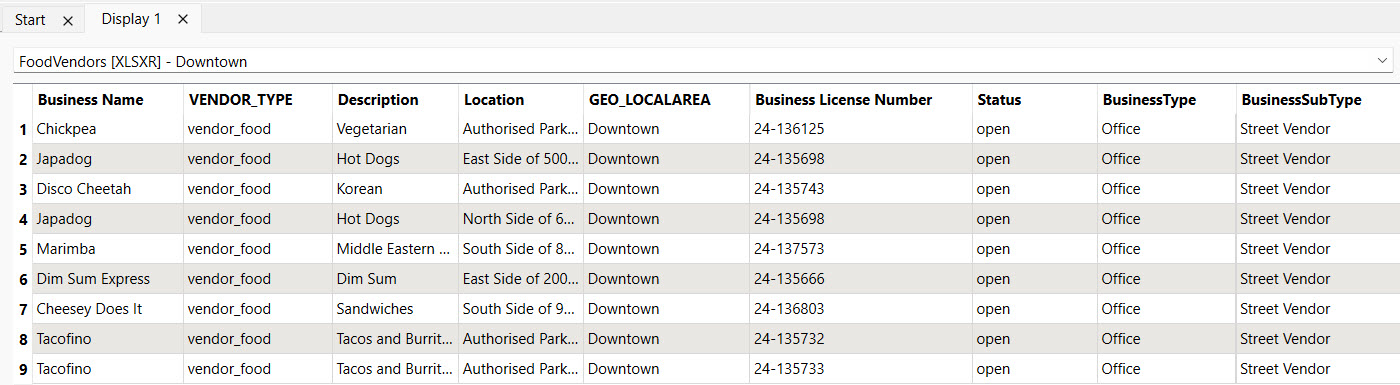
Frank extracts the zip file and opens the XLSX file in FME Data Inspector. The data matches the preview from the app.
Frank has successfully created a Webhook URL, embedded it in an HTML report streamed from a Workspace App, and then used the app to preview and download data.
Learning Objectives
After completing this lesson, you'll be able to:
- Create a Webhook URL to run a workspace on FME Flow.
- Run a Workspace App that provides a link to run the same workspace using a different service.
Resources
- Starting FME Flow project | C:\FMEData\Workspaces\CreateDataIntegrationApps\create-data-integration-apps--starting-project.fsproject
- Starting workspace | C:\FMEData\Workspaces\CreateDataIntegrationApps\FoodVendorBusinesses.fmw
If you're taking a live Safe Software-hosted training course or using an on-demand lab for this course, we've already imported the content for this lesson into your FME Flow.
If you're completing this lesson with your own FME Flow, you must import the starting project with the content into your FME Flow.
Expand for Steps to Import the Starting Project
2) Upload the
create_data_integration_apps.jceks encryption key to your FME Flow. An fmesuperuser who has permission to System Configuration > Security > System Encryption must perform this action. For more information, see our documentation on
System Encryption.
3) Navigate to your FME Flow and open Projects. Click Import.
5) The first step is Preview Content, where you may choose not to overwrite existing items. If all your items are New Items, you don't need to worry about overwriting existing items. Click Continue.
6) The next step is to select connections and tokens to import. This project doesn't contain any connections, parameters, tokens, or users to import. Click Continue through Step 2 and Step 3. Click Import Project on Step 4. The project will import and display its import status from the same page.
If the project import failed, check that you uploaded the encryption key and repeat the process. If the issue persists, please contact us at train@safe.com.
Advanced Workspace Processing with Flow Apps
Currently, FME Flow limits Workspace Apps to using only one workspace with one service at a time. In specific scenarios, you may want to run a Workspace App with multiple services, run multiple workspaces in sequence, or conditionally run other FME workflows depending on results from your app. FME Flow offers numerous features that enable you to link workspaces and apps together for seamless processing.
| Feature |
Common Functions |
|
Automation Apps
|
Run multiple workspaces in sequence or in parallel.
Run workspaces conditionally based on results or data from previous workspaces or app inputs.
Trigger additional workflows with FME Flow System Events and Topics external actions.
|
|
FME Flow REST API
|
Make API calls to FME Flow to get data and information from FME Flow.
Trigger and run FME workflows from external applications or from workspaces.
Link within Workspace App workspaces to run other workflows or send data to FME Flow.
|
Webhook URLs
|
Run workspaces programatically from third-party applications, web browsers, or other workspaces.
Link from Workspace App results to run a second workspace with app user inputs, or with a different service than the app.
|
In this lesson, we’ll cover two common examples linking multiple workspaces and apps together using FME Flow's REST API and Webhook URLs. We previously covered Automation Apps in the previous course, and you can learn more about Automation Apps in Job Orchestration in Automations.
Triggering Workflows with the FME Flow REST API
You can use the FME Flow REST API to run or enable additional workflows on FME Flow from within a workspace that is running as an app. First, locate the API endpoint you wish to use in the FME Flow REST API documentation, which you can find at http://<your FME Flow host>/fmeapiv4/docs/index.html. For example, to enable or disable a Schedule on your FME Flow from a Workspace App, you would use the PUT /schedules/{id}/enabled endpoint.
The endpoint takes a single parameter, the schedule ID, as input. You can configure your workspace to enable or disable a single schedule, or use a user parameter to select which Schedule to enable or disable in your FME Flow. You would create a Choice parameter to choose the name of the Schedule, and it would reference the ID.
Then, reference the parameter from the transformer that makes the API request in your workspace. The most common transformers for this purpose are the HTTPCaller and OpenAPICaller.
From a Workspace App, the user only sees the Schedule Names from the Choice parameter. When they run the app, the workspace makes an API call to FME Flow to enable or disable the Schedule they've selected.
Webhook URLs to Run Workspaces
Workspace Apps are limited to running a workspace once and only using one registered service, meaning you need two apps to run the same workspace with different services. You may want to run a workspace with multiple services if you wish to preview the data before writing it to its final location or downloading it. It's also slightly inconvenient to swap between and enter parameters for multiple apps.
Instead, you may link to a Webhook URL to run a workspace from a Workspace App description or from a Data Streaming result. Once you click the link, FME Flow will run the workspace using pre-set parameters. This workspace can be the same as the app's workspace, likely with a different service, or a different workspace altogether.
To create a Webhook URL, you configure your workspace to run from the Run Workspace page on FME Flow. Instead of clicking Run, scroll back up to the top, open Workspace Actions, and select Create a Webhook URL.
The Create Webhook page will open, where you create a token to grant permission to run the workspace through the webhook. There's also a Webhook URL preview that will update to match the Parameters you set.
Once you set your parameters and click Create, FME Flow creates the webhook and presents you with the opportunity to download the webhook and its instructions. For security reasons, this is your only opportunity to download this information. FME Flow also creates two URLs that you can use to run the workspace: one that uses Authentication with a Header and one that uses Authorization with a Query String. You may copy the URLs and token here.
If you paste your URL into a new browser tab, the workspace will run, and FME Flow will return the result to you.
You can paste the URL in a Workspace App description or footer text for users to click and run your workspace through the webhook.
Alternatively, with greater flexibility, you can use the Webhook URL in a Data Streaming HTML report output by incorporating custom HTML into an HTMLReportGenerator. Using a webhook in a workspace output is even more flexible because you may take user input from the initial workspace using user parameters linked in the webhook.
From an app, the URL will use the parameter value input from the app.
⭐ Coming soon in FME 2025.2: Query string parameters are coming to Flow Apps! You may complete this workflow and allow the user to pre-set parameters with a second Flow App instead of a Webhook URL.
Exercise
Frank is a GIS administrator working on a self-serve FME Flow App. His colleagues often ask him for business license data on food vendors. He frequently sends his colleagues data, and then they have follow-up requests for more data or different types of data. To make the data accessible to his colleagues and save himself time and effort in preparing the data, Frank is going to create a Workspace App that previews the data before downloading it. To accomplish this, Frank will create a Workspace App to run his workspace using the Data Streaming service. The workspace will stream an HTML report with a tabular preview of the data, and then provide a link to download the data. The link will be a Webhook URL that runs the same workspace as the app, but uses the Data Download service instead.
Follow along with Frank's steps as he creates a Webhook URL and a Workspace App for his workflow. He already has his workspace on FME Flow, and it runs successfully with the Data Download and Data Streaming services; however, he has yet to link the Data Streaming output to run the workspace with the Data Download service.
1) Create a Webhook URL
Frank navigates to and logs into his FME Flow. He opens the Run Workspace page and selects the Training repository. He then selects the FoodVendorBusinesses.fmw and sets it to the Data Download service. Under Published Parameters, Frank selects Downtown.
Instead of scrolling down to the bottom of the page to run the workspace, Frank opens the Workspace Actions menu at the top and selects Create Webhook.
The Create Webhook page opens. It creates a token to authenticate and run the workspace through the webhook and previews the URL.
Frank scrolls down and expands Parameters. If he changes the neighborhood, the Webhook URL Preview immediately changes to reflect the parameter change.
Frank will use this functionality to pull the parameter value the user selects in the App into the Webhook URL.
Frank scrolls down to the bottom of the page and selects Create.
On the next page, Frank scrolls down and copies the Authorization with Query String URL. In the next step, he will paste this into his workspace.
2) Add Webhook to Workspace
With his webhook copied, Frank opens his workspace (C:\FMEData\Workspaces\CreateDataIntegrationApps\FoodVendorBusinesses.fmw) in FME Workbench. The workspace reads Food Vendors and Business Licenses, joins them on the Business Name attribute, filters the vendors by a neighborhood set with a user parameter, then writes a CSV and an HTML report with the data.
Frank will link his workspace webhook in the HTML report, so he opens the HTMLReportGenerator settings by double-clicking the transformer. Under Page Contents, Frank selects Custom HTML and then scrolls to the bottom of the HTML code to the body section.
Frank selects <your webhook URL> and replaces it by pasting his webhook URL, which he copied from FME Flow.
Once he pastes the URL, he scrolls to the right in the text to find the NEIGHBORHOOD parameter. He selects the default parameter value and replaces it with the NEIGHBORHOOD user parameter by double-clicking it in the left pane in Content Settings.
Frank only modifies line 62, and when complete, it should be like the following:
<p><a href="http://fmetraining/fmedatadownload/Training/FoodVendorBusinesses.fmw?NEIGHBORHOOD=$(NEIGHBORHOOD)&opt_showresult=false&opt_servicemode=sync&token=bc71067504bd1d8c44f6820e182a43ed587315b7">Download Excel Sheet</a></p>
Frank clicks OK to close the HTMLReportGenerator and saves his workspace.
3) Publish to FME Flow
Frank publishes his workspace to FME Flow. He replaces his existing workspace, FoodVendorBusinesses.fmw, in the Training repository by overwriting it.
Frank clicks Next and receives a warning about overwriting the workspace. He confirms his action and clicks Replace.
Next, Frank ensures Data Download, Job Submitter, and Data Streaming are all selected for the Register Services step and clicks Publish.
4) Create Workspace App
Frank returns to FME Flow and opens Create Workspace App. He gives his app a name, title, and description. Frank then selects the FoodVendorBusinesses.fmw workspace from the Training repository and selects the Data Streaming service.
Frank doesn't alter any settings in Parameter Defaults or Customize. He clicks Create, then opens his app from the URL that FME Flow generates.
5) Run Workspace App
On his app, Frank selects a neighborhood from the drop-down and clicks Run.
FME Flow processes the workspace and presents a table of data in the HTML report. Below the table, Frank clicks the Download Excel Sheet button.
If Frank or another app user decides this is not the data they want, they can use the browser back button to return to the app, set different parameter values, then run it again.
FME Flow reruns the workspace through the Webhook URL. This time, the workspace uses the Data Download service and presents Frank with a URL he clicks to download the data.
Frank extracts the zip file and opens the XLSX file in FME Data Inspector. The data matches the preview from the app.
Frank has successfully created a Webhook URL, embedded it in an HTML report streamed from a Workspace App, and then used the app to preview and download data.